Kindle Comic Creator has been the go-to tool for manga and comic creators publishing on Amazon KDP, offering specialized features that make comic formatting straightforward and professional. While Amazon has transitioned to recommending Kindle Create for new projects, understanding the principles of panel view optimization and comic-specific formatting remains essential for manga success on the platform. This comprehensive guide will teach you everything you need to know about creating optimal comic reading experiences for Amazon KDP.
Table of Contents
Understanding Panel View Technology
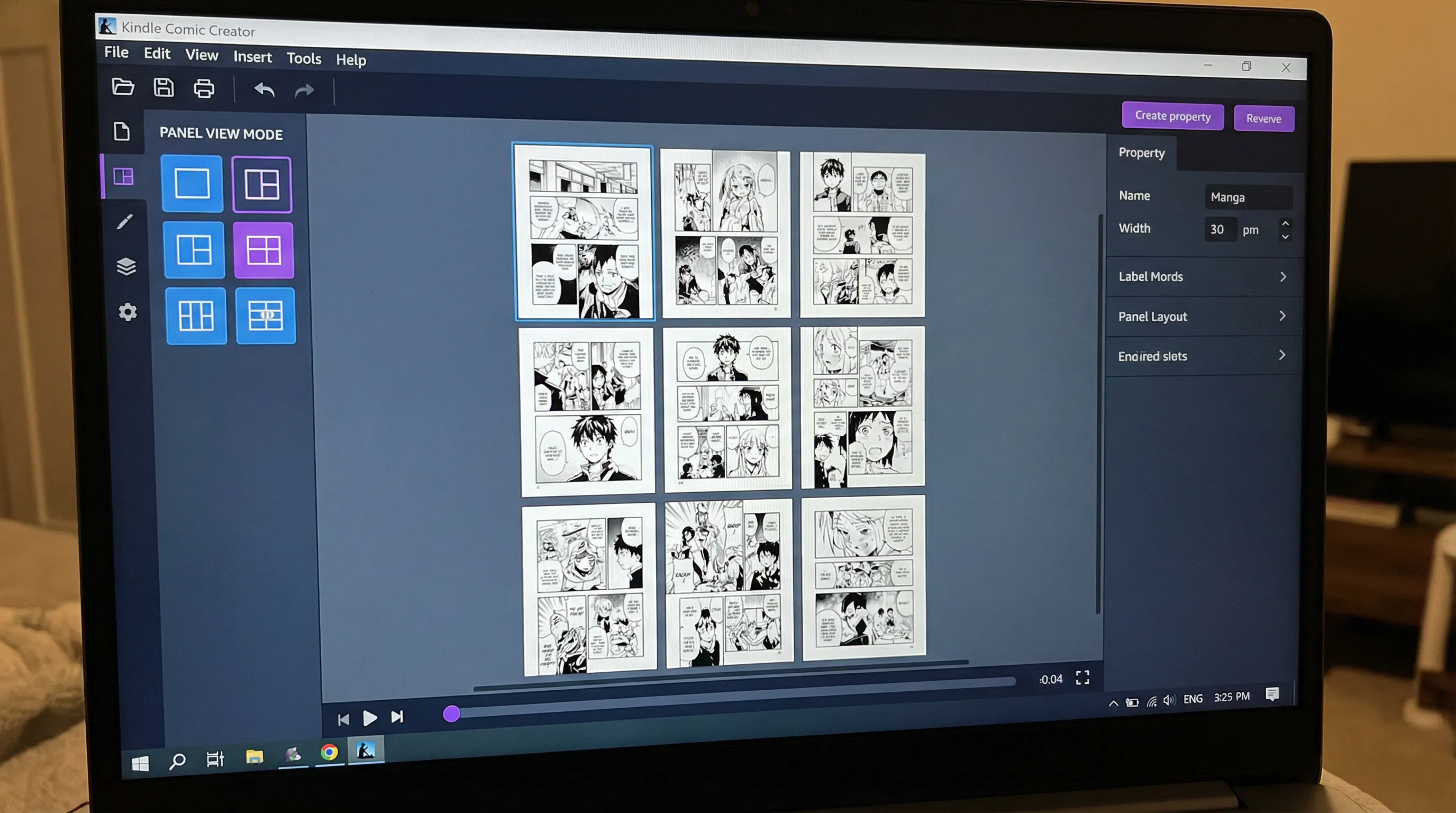
Panel View is Amazon's innovative solution to the challenge of reading comics on small screens. Traditional comics designed for print or large tablets can be difficult to read on smartphones. Panel View addresses this by allowing readers to tap through your comic one panel at a time, with each panel automatically enlarged to fill the screen. For manga creators, Panel View is not optional—it's essential. With over 60% of Kindle comic readers accessing content on smartphones, proper Panel View implementation directly impacts reader satisfaction, reviews, and ultimately sales.
Setting Up Kindle Create for Comics
Amazon now recommends Kindle Create as the primary tool for preparing comics and manga for KDP. This free application provides professional-grade formatting capabilities specifically designed for visual storytelling. Download Kindle Create from Amazon's official KDP website. Launch Kindle Create and select "Create New" from the welcome screen. Choose "Comic or Graphic Novel" as your project type. The first critical decision is reading direction. For traditional Japanese manga reading right-to-left, select "Right to Left" in the project settings.
Defining Panels for Optimal Mobile Reading
Panel definition is the most critical and time-consuming aspect of preparing comics for KDP. Proper panel markup transforms your comic from a static image collection into an interactive mobile reading experience. Draw panel boundaries by clicking and dragging to create rectangular regions around each panel. Precision matters—panel boundaries should tightly encompass all visual content including speech bubbles and sound effects. Reading sequence is automatically determined by the order you create panel definitions. Create panels in the exact order readers should view them.
Configuring Reading Direction and Page Flow
Reading direction is fundamental to manga authenticity and reader experience. Kindle Create supports both left-to-right and right-to-left page progression and panel sequences. Japanese manga traditionally reads right-to-left, with pages progressing from back cover to front, and panels sequenced right-to-left, top-to-bottom within each page. To set right-to-left reading, access Book Settings from the Tools menu and select "Right to Left" as page progression direction. Panel reading order must match your page progression direction.
Common Panel View Mistakes to Avoid
Even experienced creators make panel definition errors that diminish reading experience. Overlapping panel definitions create confusion in reading order and can cause panels to display incorrectly. Always ensure panel boundaries are distinct with no overlap. Skipping panels or incomplete panel coverage means some content won't be accessible in Panel View. Review each page carefully to ensure complete coverage. Incorrect reading sequence occurs when panels are defined out of order. Too many tiny panels creates a fragmented reading experience on mobile devices.
Conclusion
Panel View technology has transformed how manga and comics are consumed on digital devices, making mobile optimization essential for modern creators. By mastering panel definition, reading direction configuration, and mobile-first design principles, you ensure your manga provides excellent reading experiences across all devices. Remember that Panel View is not just a technical requirement—it's a storytelling opportunity. Well-implemented Panel View creates a cinematic, immersive reading experience that can enhance your narrative impact.
Frequently Asked Questions
Do I still need to use Kindle Comic Creator in 2026?
No, Amazon now recommends Kindle Create for all new comic and manga publications. While Kindle Comic Creator still functions, Kindle Create offers improved features and continues to receive updates. If you have existing projects in Kindle Comic Creator, you can still use them, but new projects should use Kindle Create.
How many panels should I define per page?
There's no fixed rule, but 4-6 panels per page typically works best for mobile reading. More panels can fragment the experience, while fewer may not take full advantage of Panel View's capabilities. Let your storytelling and page layout guide the decision rather than following rigid formulas.
Can I publish manga without Panel View definitions?
Technically yes, but it's strongly discouraged. Comics without Panel View provide poor reading experiences on smartphones, resulting in negative reviews and lower sales. Since most Kindle comic readers use mobile devices, proper Panel View implementation is essential for success.
What if my manga includes double-page spreads?
Double-page spreads can be included but require special handling. You can define them as single large panels (requiring horizontal scrolling), break them into logical panel sections, or consider whether the spread is necessary in digital format. Test different approaches to find what preserves your artistic intent while ensuring mobile readability.
How do I fix panel order mistakes after uploading to KDP?
Download your .kpf file from KDP (or use your local backup), open it in Kindle Create, and redefine panels in the correct order. Then re-upload the corrected file to KDP. Always preview thoroughly before publishing to avoid needing corrections after going live.